
How to choose the right HP laptop and home office setup
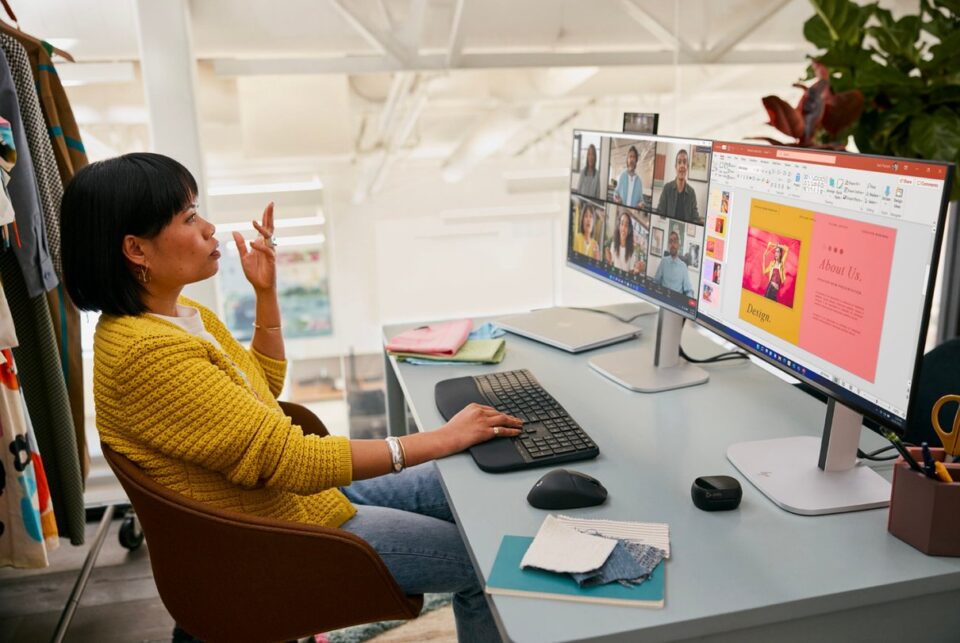
Choosing a computer is easier when you start with the way you actually work. Do you carry it between rooms, edit large files, print school paperwork, or need a comfortable desk for long video calls? HP store Australia (AU) brings laptops, desktops, printers, monitors and accessories together, so you can build around those answers instead of shopping from a confusing list of specifications.
This guide takes you through a simple process. I will use the HP OmniBook 7 range as a practical example, then show when a desktop, Smart Tank printer or Series 5 Pro monitor makes more sense. Product prices and availability can change, so check the live HP store listing before you decide.
We may earn a commission when you buy through links on this page, at no extra cost to you.
Your everyday work determines the right HP computer
Write down your three most common tasks before you compare models. A student who moves between lectures needs a different balance from a home worker who keeps dozens of browser tabs open. Use this quick filter while browsing the laptop collection:
- Portability: choose a smaller screen and lighter build if your laptop travels daily.
- Multitasking: prioritise more memory and a modern processor for meetings, research and creative apps.
- Desk-first work: consider a larger display, desktop or monitor when comfort matters more than battery life.
- Printing: add a printer only after estimating how often you print and whether you need colour.
The advantage of shopping direct from HP is that the categories sit close together. You can compare a laptop with a monitor, dock or keyboard in the same session, rather than discovering an important missing connection after delivery.
HP screens and processors set the working experience
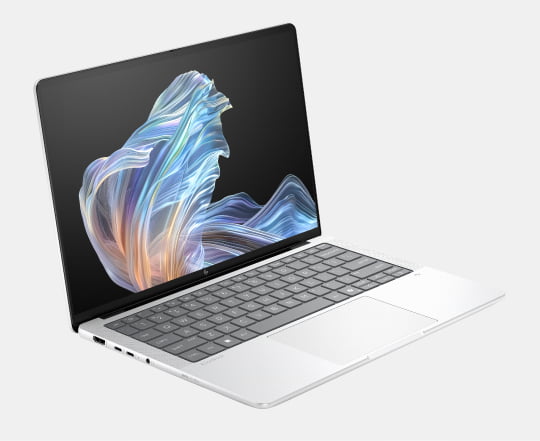
Screen size is the first decision you will feel every day. The HP OmniBook 7 AI 14 is the sensible compact option, with a 14-inch 2K display, Intel Core Ultra 5 processor, 16 GB memory and 512 GB SSD.
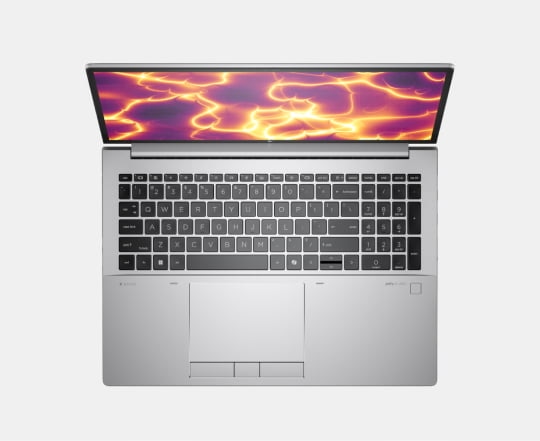
For a little more room, the HP OmniBook 7 Laptop Next Gen AI 16 is a strong middle choice. The configuration shown on HP includes an Intel Core Ultra 7 processor, 32 GB memory, 1 TB SSD and a 16-inch 2.5K display, so it is worth checking the current laptop deals before checkout.
If you want a large canvas for spreadsheets, design work or shared viewing, look at the HP OmniBook 7 Next Gen AI 17. The model page lists a 17.3-inch FHD touchscreen, Intel Core Ultra options and up to 32 GB LPDDR5x memory. Its bigger footprint is the tradeoff, but the large-screen HP option can reduce the need for a second display.
As a rule, choose 16 GB memory for everyday work and move toward 32 GB when you edit photos, use demanding creative software or want more headroom. SSD storage keeps starts and file access brisk. Check the exact configuration on the product page, because a model family can include several configurations.
HP desktops and monitors suit fixed workspaces
A desktop is a better fit when the computer will stay in one place, you want a larger screen for less money, or you prefer easy access to a full keyboard and mouse. Browse HP desktop PCs and compare the space available under your desk before choosing a case.
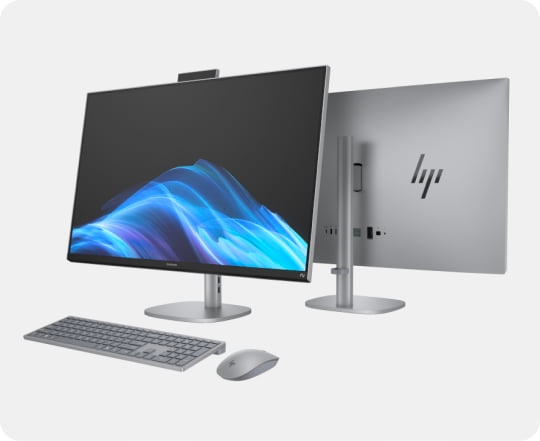
Adding a monitor is useful when you already own a capable laptop. The HP Series 5 Pro monitor range is designed for hybrid work, while a dock can turn a single USB-C connection into a tidy desk. Before adding either, check your laptop ports and the display resolution you want.
- Measure the desk width and viewing distance.
- Check whether the laptop supports the monitor’s connection and resolution.
- Choose height adjustment if you share the desk or work long hours.
- Keep the laptop screen as a second display only if it improves your workflow.
HP Smart Tank printers cover regular home printing
For regular colour documents, recipes, labels or homework, explore HP Smart Tank printers. The refillable, cartridge-free design is intended for people who want to keep ink supplies ready at home. Compare the printer’s included ink, wireless features and paper handling with your real monthly volume.
Finish the setup with the small details that affect comfort: a keyboard that suits your typing style, a mouse that fits your hand and a dock if you regularly connect several devices. HP’s accessories collection is useful for filling those gaps without mixing incompatible standards.
- For calls: add a webcam or headset if your laptop camera is not enough.
- For a clean desk: use one dock and route charging cables behind the monitor.
- For creative work: prioritise a reliable display and external storage.
- For family use: choose simple wireless accessories and a printer with clear status controls.
HP buying details confirm the final choice
Before adding anything to your basket, open the full specifications and check the operating system, ports, wireless standard, warranty and delivery terms. HP highlights free shipping on qualifying products, financing options and support resources, but terms differ by product and location. Save the configuration or product number so you can compare like with like.
It is also worth checking HP support and drivers before you need them. A clear support path, warranty check and return information can be as valuable as a small processor upgrade. For a work setup, prioritise the feature that removes a daily frustration.
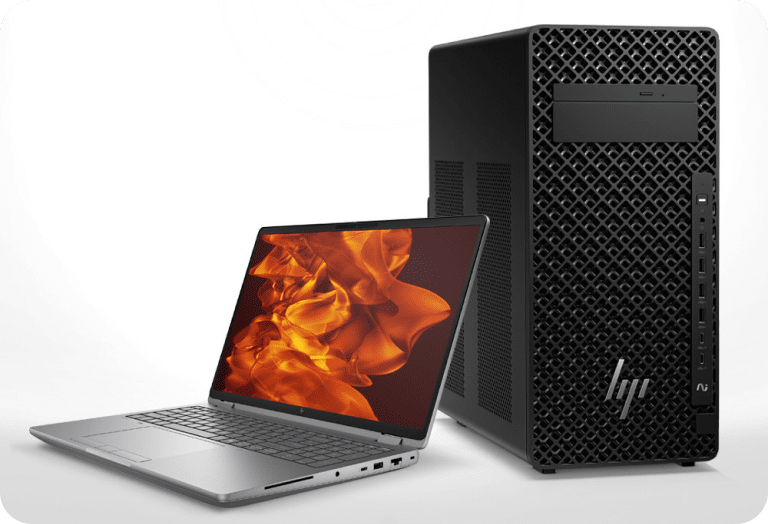
My quick picks are simple: choose the 14-inch OmniBook for movement, the 16-inch OmniBook for balanced everyday power, and the 17-inch OmniBook when screen space leads. Add a Series 5 Pro monitor for a fixed desk, and consider Smart Tank when home printing is part of the routine.
Check the latest HP offers one last time, then confirm the exact storage, memory and delivery details. That small final check is what turns a broad product search into a setup that works for you.
The best HP setup is the one matched to your daily tasks, with the right screen, memory and support for how you actually work.